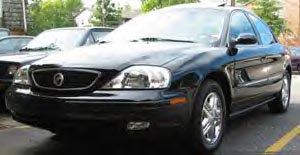
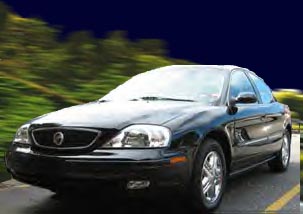
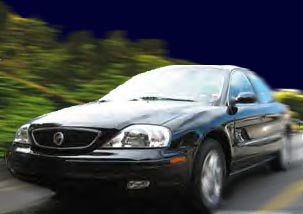
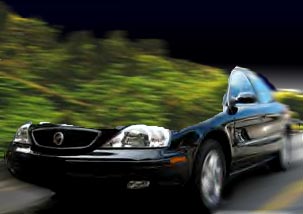
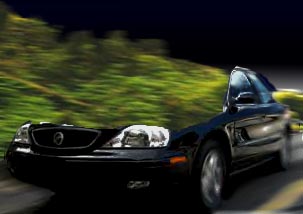
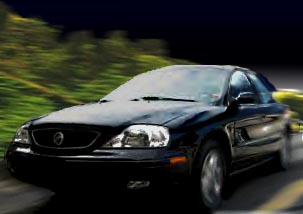
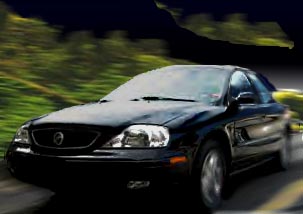
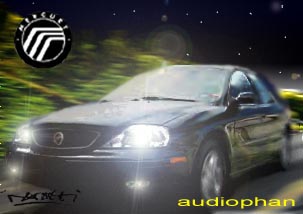
2audiophan1.jpg 583 hits | | Posted: 6/29/03 The idea's simple... make Mike's big, black Mercury Sable look like it's flying down some German roa...
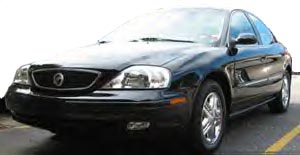
2audiophan0.jpg 546 hits | | Posted: 6/29/03 First, I use the Lasso tool, in your toolbar (the tall, skinny floating bar) to cut the background o...
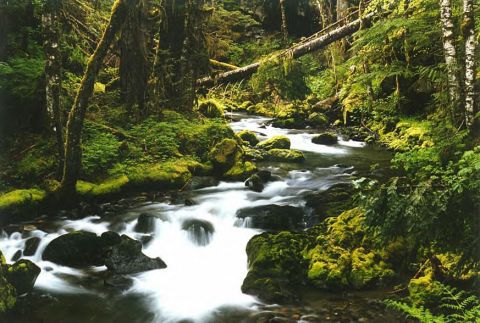
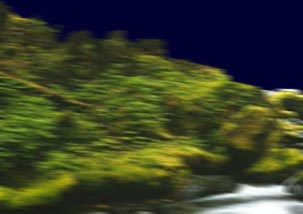
2RockyCreek_f.jpg 553 hits | 50.26 KB | Posted: 6/29/03 I open another picture, this one of a creek, and paste the Merc into a new Layer. Think of layers as...
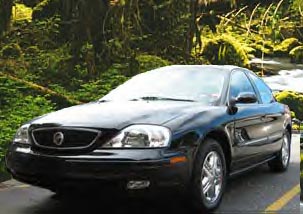
2audiophan2.jpg 604 hits | 50.26 KB | Posted: 6/29/03 Here's the Sable on the forest background. Notice how the road doesn't come to the end of the pictur...
2audiophan3.jpg 676 hits | 50.26 KB | Posted: 6/29/03 Turning off the car layer lets you see the layers behind it. I use lasso, select some treeline area,...
2audiophan4.jpg 646 hits | 50.26 KB | Posted: 6/29/03 I use the Motion Blur Filter to add movement to the background. Here's the Mercury back in the pictu...
2audiophan5.jpg 674 hits | 50.26 KB | Posted: 6/29/03 Using the lasso again, I selected the road and used the Motion blur to create the image of a speedin...
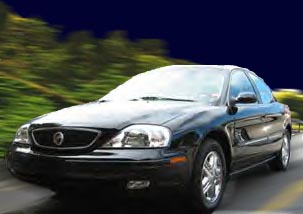
2audiophan6.jpg 659 hits | 50.26 KB | Posted: 6/29/03 Now the wheels were selected using the Ellipse selection tool. A little radial blur, and the car is ...
2audiophan7.jpg 594 hits | 50.26 KB | Posted: 6/29/03 I used the lasso tool to select the rear of the car to blur with some Motion filter, and used the te...
2audiophan8.jpg 556 hits | 50.26 KB | Posted: 6/29/03 Now, I select the highlit roof and winshield, cut, create a new layer, and paste them onto it. By cl...
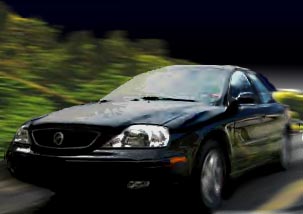
2audiophan9.jpg 546 hits | 50.26 KB | Posted: 6/29/03 The topless Sable was darkened using the Contrast/Brightness tool in the Adjust menu on the top of P...
2audiophan10.jpg 544 hits | 50.26 KB | Posted: 6/29/03 With the top visible, I adjusted it's contast as well. This was done to give the two areas different...
2audiophan11.jpg 512 hits | 50.26 KB | Posted: 6/29/03 To make the Merc really look like it's in it's new home, I took a chunk of the trees, pasted it onto...
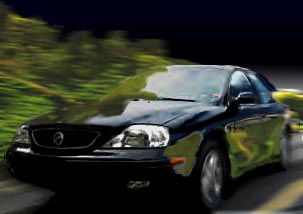
2audiophan12.jpg 647 hits | 50.26 KB | Posted: 6/29/03 I took the "island", made copies, and put them where the reflections will go. Use Eraser, Smudge, an...
2audiophan13.jpg 655 hits | 50.26 KB | Posted: 6/29/03 Double-click on the Layers your islands are in (in the Layer Pallette) and turn their opacity down. ...
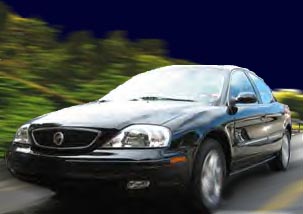
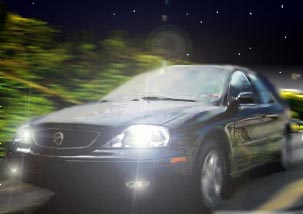
2audiophan14.jpg 569 hits | 50.26 KB | Posted: 6/29/03 Filters-Render-Lens Flare will give you the effect needed for the headlights. At this point, you wil...
2audiophan15.jpg 728 hits | 50.26 KB | Posted: 6/29/03 After you have flattened the image, you can add the Lens Flare, and I added in Mike's callsign, "aud...
|
|